Make a source copy you can return to.
Start with an actual .fdx file. Renaming a PDF, Word document or plain-text file to end in .fdx does not convert its contents. Keep an unchanged, dated copy of the screenplay outside the project you are evaluating. If you have a reference PDF of the same draft, keep it alongside the source. The two files serve different purposes: the FDX carries the structured screenplay, while the PDF helps you review how that particular draft looked when it was issued.
Confirm that the source is the draft you mean to import. A familiar title is not enough if several revisions have similar filenames. Note the date, the first scene, the last scene and any distinctive passage you can use to identify it. For a collaborative production, agree on who owns the working draft before you create a new one. This small preparation prevents a compatibility review from becoming a disagreement about which version was current.
Read the report before editing.
Use the app’s “Import FDX / Fountain / project” action and select your source copy. Review any compatibility or formatting notices before changing the screenplay. An import report is there to identify decisions that need attention, not merely to confirm that the file opened. A scene heading that looks right does not demonstrate that imported page locks, revision history or custom spacing have been reproduced.
Treat retained source information and native editable behavior as separate questions. Some information can remain in the original import without being applied to the new native layout. If a notice says that a production anchor, spacing preset or revision behavior needs review, keep that limitation with the project. Do not dismiss it on the assumption that matching text means matching production formatting. The launch promise is a reviewed writing workflow, with visual planning connected to the native project.
Compare representative pages, not just the opening.
Check the title page, first and last scenes, scene headings, action and character cues. Find a long dialogue passage, a parenthetical, emphasized text and any dual dialogue. Review a page break in the middle of a speech and a scene transition near the bottom of a page. Compare the text itself as well as its appearance. These examples expose more differences than a quick look at a clean first page.
If the source was already in production, also review scene numbers, locked-page expectations and revision marks. Native pagination can differ even when the words are intact. Do not assume that a page number is a stable scene identity or that a scene with the same heading is necessarily the same record. If an issued layout is required, keep the approved source and agree on a reviewed output instead of silently replacing it with a new application’s interpretation.
Save and reopen before building the visual plan.
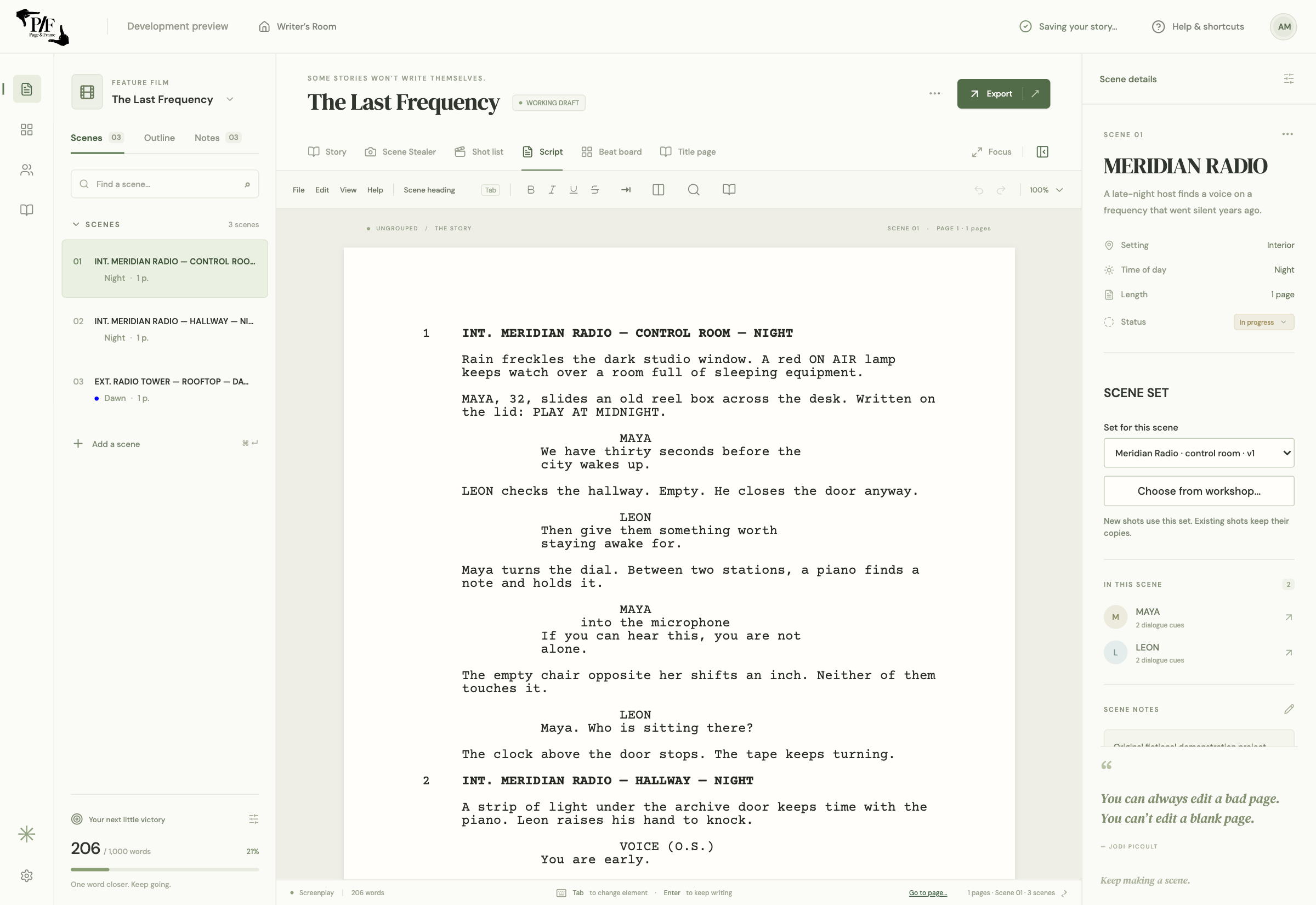
After reviewing the import, save a native Page & Frame project under a distinct filename. Close it, reopen that saved file and check the identifying passages again. Confirm that the title page, dialogue and important formatting remain intact. Saving a native project gives the screenplay, planning data and visual scene associations a shared home; it does not remove the need for your own backups.
Now choose a set for a scene, add the relevant cast and capture a small piece of coverage. Keep that association tied to the real scene. A plan that survives saving and reopening is more useful than a temporary preview you cannot reliably return to. If you discover a problem, keep the source and the new project so that the issue can be investigated without overwriting the original screenplay.
Agree on the next handoff.
Decide what the next person needs: a readable screenplay PDF, storyboard pages, a visual shot list or an editable native project. These are different deliverables. If someone must continue editing in Final Draft, agree on the file and review process before treating the new draft as interchangeable with their working document. Full imported version history and a guaranteed edited FDX round trip are not launch promises.
Write down which project is now authoritative and retain a dated reference output. That keeps visual planning from creating a second, competing script. When you assess Page & Frame as an alternative, test this actual handoff with a representative scene. Compatibility is useful when it fits the people and outputs on your project—not simply when two applications recognize the same extension.
Will the imported script have exactly the same page breaks?
Not necessarily. Different layout engines can paginate the same screenplay differently. Review the native layout and any compatibility notices. Identical Final Draft pagination, full imported revision/version history and a guaranteed edited FDX round trip are not claimed for launch.
Your import review, at a glance.
- Unchanged source FDX and matching reference PDF retained.
- Correct draft identified by date and representative passages.
- Import report and production-format notices reviewed.
- Title page, headings, long dialogue, emphasis and dual dialogue checked.
- Native project saved, closed and reopened successfully.
- Scene-to-set/shot links reviewed before sharing coverage.
- Working source and next handoff agreed with collaborators.
Before you decide
A few useful answers.
Can I import a PDF by changing its extension to .fdx?
No. A file extension is a label, not a conversion. Use an actual FDX screenplay for this workflow; keep a PDF as a visual reference if available.
Does this overwrite my Final Draft file?
Keep the original source and save the imported working draft as a separate native Page & Frame project. That separation lets you review changes and return to the original when needed.
Where can I download Page & Frame?
Public downloads and sales are not open yet. Join the launch list for the Apple Silicon Mac release; the first launch does not offer Windows or Intel Mac installers.